
Microsoft Windows & File Management
Week 1 — Lesson 2 | CI2000: Computer Fundamentals
Learning Objectives
- Navigate the Windows 11 desktop to locate applications, manage windows, and access settings without instructor assistance (CO-2)
- Given 15 disorganized clinic files, create a logical folder structure in File Explorer using healthcare naming conventions (date_department_description format) (CO-2)
- Evaluate a set of file names and folder structures to identify organizational errors and recommend corrections that meet healthcare documentation standards (CO-2)
Part 1 of 6 — The Windows 11 Desktop: Your Healthcare Digital Workspace
When you power on a clinic workstation and sign in, the first thing you see is the Windows 11 desktop. This is your digital workspace — the starting point for every task you perform on the computer. Just as a well-organized physical desk helps you work efficiently, understanding the layout of the Windows desktop helps you navigate software quickly and confidently in a fast-paced healthcare environment.
Desktop Components
The Windows 11 desktop has several key areas. Review each component:
🖥 Desktop Background
The main screen area where you can place shortcut icons. IT often sets a standardized wallpaper with the organization's logo.
📌 Desktop Icons
Small pictures representing applications, files, or shortcuts — such as the EHR, Word, browser, and scanner.
📊 Taskbar
The horizontal bar at the bottom showing pinned apps, open programs, and system notifications. Centered in Windows 11.
▶ Start Button
Opens the Start menu — your gateway to all installed applications, recent files, and system settings.
🔔 System Tray
Displays clock, date, network status, volume control, security software icons, and VPN connection status.
🔍 Search Bar
Type the name of any application, file, or setting to find it instantly — often the fastest way to open programs.
The Start Menu
The Windows 11 Start menu is divided into two main sections:
- Pinned apps – A grid of application icons that you or your IT department have pinned for quick access. Common pinned apps on a healthcare workstation include Microsoft Word, Excel, Outlook, the web browser, and the EHR application.
- Recommended – A list of recently opened files and applications. This section adapts to your usage patterns, making it easy to pick up where you left off. For example, if you were working on a patient scheduling spreadsheet yesterday, it will likely appear in the Recommended section today.
To access the full list of all installed applications, select All apps at the top right of the Start menu. Applications are listed alphabetically, making them easy to browse.
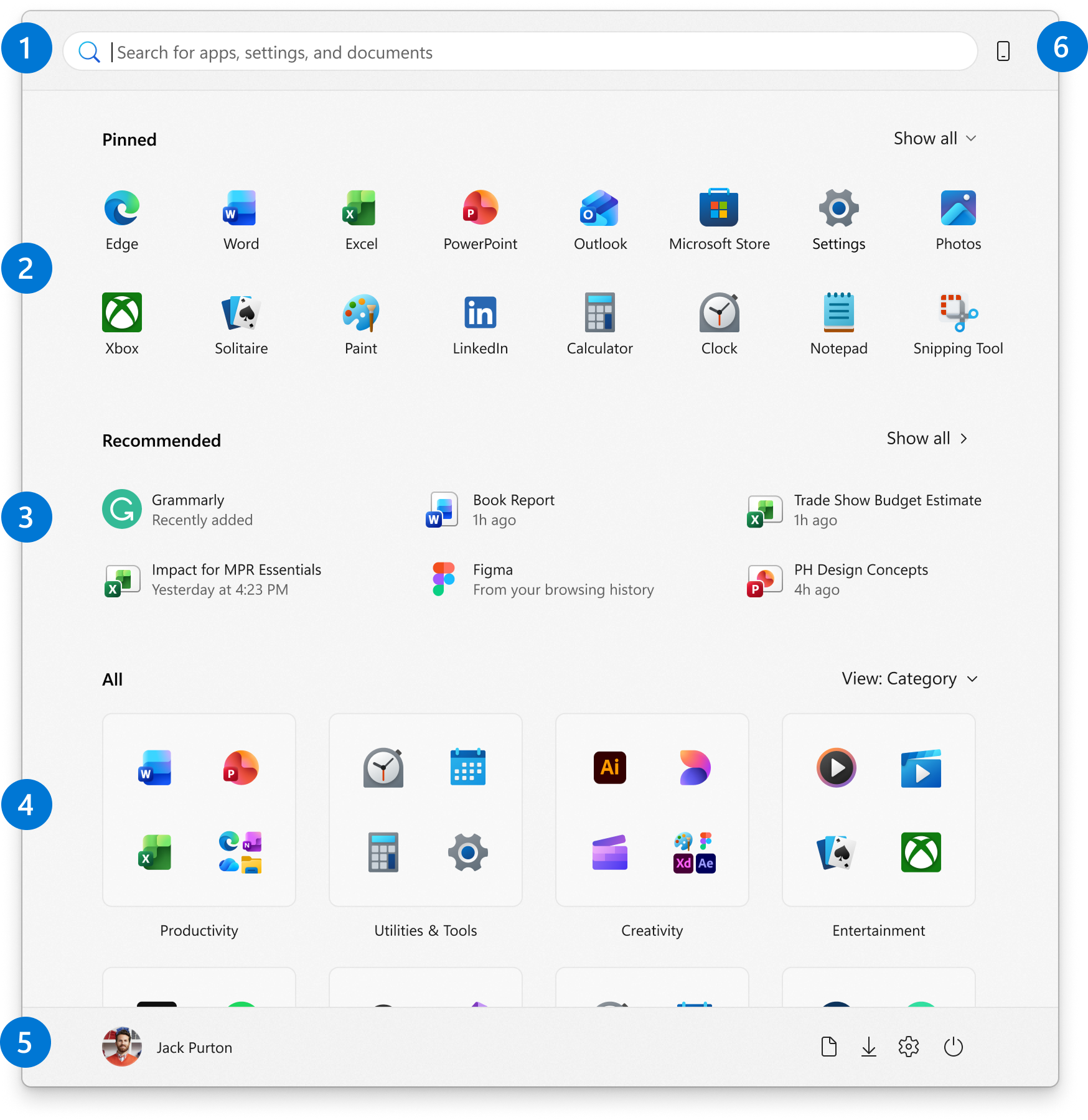
The Windows 11 Start Menu — organized into Pinned and Recommended sections — Microsoft Support
Snap Layouts for Multitasking
Healthcare professionals frequently need to work with multiple applications simultaneously — for example, viewing a patient record in the EHR while composing a referral letter in Word. Windows 11 introduces Snap Layouts, a feature that makes arranging multiple windows easy. Hover your mouse over the maximize button (the square icon at the top-right corner of any window), and a grid of layout options appears. You can snap two, three, or four windows side by side with a single click. This is far more efficient than manually dragging and resizing windows.
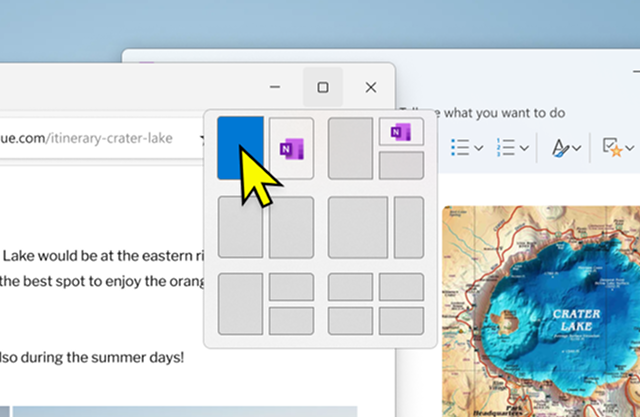
Snap Layouts — hover over the maximize button to see layout options — Microsoft Support
Healthcare Connection
A medical receptionist might snap the scheduling system to the left half of the screen and Outlook to the right half, allowing them to check appointment availability while responding to a patient's email — all without switching back and forth between windows.
▶ Windows 11 In-Depth Overview • Kevin Stratvert • 15 min
Part 2 of 6 — Navigating File Explorer
File Explorer is the Windows application you use to browse, find, and manage all the files and folders on your computer and network. If the desktop is your workspace, File Explorer is your filing cabinet. Mastering File Explorer is essential for healthcare professionals who handle large volumes of digital documents — from scanned insurance cards to completed intake forms.
Opening File Explorer
There are several ways to open File Explorer:
- Select the folder icon pinned to the taskbar (it looks like a yellow folder).
- Press Windows key + E on your keyboard (the fastest method).
- Right-click the Start button and select File Explorer from the menu.
- Type “File Explorer” in the search bar and press Enter.

The File Explorer icon on the Windows 11 taskbar — click it or press Windows + E — Microsoft Support
Understanding the File Explorer Layout
When File Explorer opens, you will see several panels and areas. Select each tab to learn about the five main components:
Address Bar (top) – Shows your current location in the folder hierarchy. You can select any segment of the path to jump to that level, or type a path directly.
For example, typing C:\Users\JSmith\Documents\Patient_Forms takes you directly to that folder. This is especially useful when a colleague tells you exactly where a file is stored on the network.
Content Area (center) – Displays the files and folders in the current location. You can switch between different view modes:
- Large Icons – Helpful for identifying image files like scanned documents
- Details – Shows file name, date modified, type, and size — best for document management
- List – Compact view for scanning many file names quickly
- Tiles – Balanced view with icons and key details
Command Bar (top) – Provides buttons for common actions like creating new folders, copying, pasting, renaming, and deleting.
In Windows 11, this is a streamlined bar with the most common actions visible and additional options in a “...” (more) menu. This simplified design reduces clutter while keeping essential tools accessible.
Search Box (top right) – Allows you to search within the current folder and its subfolders. Type part of a file name, and matching results appear instantly.
This is invaluable when a folder contains hundreds of files. For example, searching “consent” in a Patient_Forms folder will quickly surface all consent-related documents.
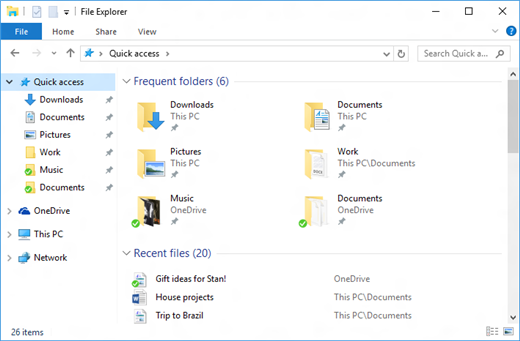
Quick Access in File Explorer shows your frequently used folders and recent files — Microsoft Support
Quick Access and Pinned Folders
Quick Access appears at the top of the Navigation pane and provides instant access to folders you use most often. Windows automatically adds frequently accessed folders, but you can also pin folders manually by right-clicking a folder and selecting Pin to Quick Access. For a healthcare professional, useful pinned folders might include:
- A “Patient_Forms” folder for frequently used intake documents
- A “Templates” folder for letter and report templates
- A shared network folder for the department’s standard operating procedures
- A “Training_Materials” folder for continuing education documents
Healthcare Connection
According to Microsoft’s File Explorer documentation, Quick Access is designed to surface the files and folders you use most. In a medical office, pinning your most-used folders — such as patient intake forms and insurance verification templates — to Quick Access can save several minutes of navigation per day, adding up to significant time savings over weeks and months.
Part 3 of 6 — Essential File Operations
Managing files is a core skill for any healthcare professional. Whether you are saving a scanned insurance card, organizing patient correspondence, or archiving completed reports, you need to know how to create, rename, copy, move, and delete files and folders efficiently. Expand each operation below to learn more:
Creating Files and Folders
To create a new folder in File Explorer:
- Navigate to the location where you want the new folder (e.g., Documents\Clinic_Records).
- Select New in the command bar, then select Folder.
- Type a descriptive name for the folder and press Enter.
You can also right-click in any empty area of the content pane, select New, and choose Folder or a specific file type (such as Microsoft Word Document or Microsoft Excel Worksheet).
Renaming Files and Folders
To rename a file or folder:
- Right-click the item and select Rename, or select the item and press F2.
- Type the new name and press Enter.
Important: When renaming files, do not change the file extension (the part after the last period, such as .docx, .xlsx, or .pdf). Changing the extension can make the file unreadable. Windows may hide extensions by default; you can show them by selecting View in the command bar and checking File name extensions.
Copying and Moving Files
There are several methods for copying and moving files:
- Right-click method: Right-click the file, select Copy (or Cut to move), navigate to the destination folder, right-click in empty space, and select Paste.
- Keyboard shortcuts: Select the file, press Ctrl+C to copy (or Ctrl+X to cut), navigate to the destination, and press Ctrl+V to paste.
- Drag and drop: Click and drag a file from one location to another. Dragging between drives copies the file; dragging within the same drive moves it. Hold Ctrl while dragging to force a copy.
The difference between copy and move is important: copying creates a duplicate in the new location (the original stays in place), while moving transfers the file entirely (the original is removed from the source location).
Deleting Files and the Recycle Bin
To delete a file or folder, select it and press the Delete key, or right-click and select Delete. Deleted items are moved to the Recycle Bin, a temporary holding area on the desktop. Items remain in the Recycle Bin until you empty it, giving you a safety net to recover accidentally deleted files.
To restore a deleted file:
- Open the Recycle Bin by double-clicking its desktop icon.
- Find the file you want to recover.
- Right-click the file and select Restore. The file returns to its original location.
To permanently delete all items, right-click the Recycle Bin icon and select Empty Recycle Bin. Be cautious with this action — once the Recycle Bin is emptied, files cannot be easily recovered.
Selecting Multiple Files
Healthcare workers frequently need to work with multiple files at once — for example, moving all of Monday’s scanned intake forms into a dated folder. Useful selection techniques include:
- Ctrl+Click – Hold Ctrl and click individual files to select non-consecutive items.
- Shift+Click – Click the first file, hold Shift, and click the last file to select a consecutive range.
- Ctrl+A – Select all items in the current folder.
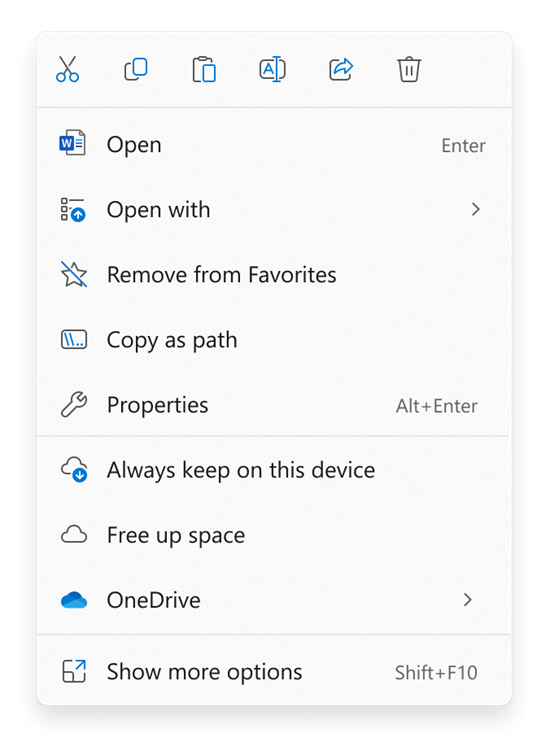
Right-click any file to access common operations like Cut, Copy, Paste, Rename, and Delete — Microsoft Support
Healthcare Connection
Imagine a billing specialist who needs to move 30 completed claim forms from a “Processing” folder to a “Completed_January” folder. Using Ctrl+A to select all files, then Ctrl+X and Ctrl+V to move them, completes the task in seconds rather than moving files one by one.
Part 4 of 6 — File Types Every Healthcare Professional Should Know
Files come in many different formats, each designed for a specific purpose. Recognizing common file types helps you choose the right application to open a file, avoid compatibility issues, and communicate effectively with colleagues and IT support. The file type is indicated by the file extension — the letters after the period at the end of a file name.
Here are the most common file types you will encounter in a healthcare workplace:
- .docx (Microsoft Word Document) – Used for text-based documents such as patient letters, referral forms, clinic policies, and procedure manuals. Word documents support rich formatting, images, tables, and track changes for collaborative editing.
- .xlsx (Microsoft Excel Spreadsheet) – Used for data organized in rows and columns. Healthcare applications include supply inventory lists, staff scheduling grids, budget reports, and patient volume statistics.
- .pptx (Microsoft PowerPoint Presentation) – Used for slide-based presentations. Common in healthcare for staff training, orientation programs, patient education materials, and departmental reports.
- .pdf (Portable Document Format) – A universal format that preserves the exact appearance of a document regardless of what device or software opens it. PDFs are standard for insurance Explanation of Benefits (EOBs), signed consent forms, lab results, and any document that must look the same everywhere.
- .jpg / .png (Image files) – Common for scanned documents, medical images, clinic photos, and marketing materials. JPG files are compressed for smaller size; PNG files support transparency and are used for logos and graphics.
- .csv (Comma-Separated Values) – A plain-text format for tabular data. Used for importing and exporting data between systems — for example, exporting a patient list from the EHR to load into a mailing system.
- .txt (Plain Text) – A simple format with no formatting. Sometimes used for system logs, configuration files, or quick notes.
- .zip (Compressed Archive) – A compressed file that can contain multiple files and folders. Used for sending several related documents as a single attachment, such as a set of training materials or a batch of scanned records.
| Extension | File Type | Opens With | Healthcare Example |
|---|---|---|---|
.docx |
Word Document | Microsoft Word | Patient consent forms, referral letters, policy manuals |
.xlsx |
Excel Spreadsheet | Microsoft Excel | Supply inventory, staff schedules, budget tracking |
.pptx |
PowerPoint Presentation | Microsoft PowerPoint | New hire orientation, safety training slides |
.pdf |
Portable Document Format | Adobe Reader, Edge browser | Insurance EOBs, signed consent forms, lab reports |
.jpg / .png |
Image File | Photos app, image viewers | Scanned insurance cards, wound care photos, clinic logos |
.csv |
Comma-Separated Values | Excel, Notepad, database apps | Patient lists exported from EHR, data imports between systems |
.txt |
Plain Text | Notepad | System logs, configuration files, quick reference notes |
.zip |
Compressed Archive | File Explorer, WinZip | Batch of scanned records, training material packages |
Part 5 of 6 — Healthcare File Naming Conventions and Organization
In a healthcare environment, proper file naming and folder organization are not just good habits — they are professional necessities. When multiple staff members access shared files, consistent naming prevents confusion, saves time, and supports compliance with record-keeping standards. A disorganized file system can lead to misfiled documents, duplicated work, and even compliance issues.
Why File Naming Matters in Healthcare
Consider this scenario: A medical records clerk needs to find a patient’s signed consent form from three months ago. If the file was saved as Scan001.pdf, finding it among hundreds of similarly named scans would be nearly impossible. But if it was saved as PT10452_2026-01-15_ConsentSurgery.pdf, the clerk can immediately identify the patient, date, and document type.
Recommended Healthcare File Naming Format
A widely adopted convention in healthcare settings follows this pattern:
[Identifier]_[Date]_[DocumentType]_[Version]
Each component serves a specific purpose:
- Identifier – A patient ID, employee ID, department code, or project name. Never use the patient’s full name in file names on shared drives, as this can create HIPAA concerns. Use de-identified codes or medical record numbers (MRNs) assigned by the organization.
- Date – Use the ISO format YYYY-MM-DD (e.g., 2026-02-15). This format ensures that files sort chronologically when listed alphabetically. Avoid formats like MM/DD/YYYY because the forward slash is an illegal character in file names.
- Document Type – A brief, standardized descriptor such as ConsentForm, LabResults, InsuranceVerification, ProgressNote, or ReferralLetter.
- Version (optional) – A version indicator like v1, v2, or FINAL for documents that go through revisions.
File Naming Rules from Microsoft
According to Microsoft’s official documentation on file naming, Windows file names must follow these technical rules:
- File names cannot contain these characters: \ / : * ? " < > |
- File names should not exceed 255 characters (including the path).
- Avoid leading or trailing spaces and periods.
- Certain names are reserved by Windows and cannot be used: CON, PRN, AUX, NUL, COM1–COM9, LPT1–LPT9.
Folder Organization Best Practices
A recommended healthcare folder hierarchy:
- Department folder (e.g., Front_Desk, Billing, Clinical)
- Year folder (e.g., 2026)
- Month folder (e.g., 01_January, 02_February)
- Document type subfolder (e.g., Consent_Forms, Insurance_Verifications)
- Month folder (e.g., 01_January, 02_February)
- Year folder (e.g., 2026)
Common File Naming Mistakes to Avoid
- Vague names – Names like Document1.docx, Untitled.xlsx, or New Folder tell you nothing about the content.
- Using patient full names – This creates HIPAA risks on shared drives. Use patient ID numbers or MRNs instead.
- Inconsistent date formats – Mixing 01-15-2026, Jan 15 2026, and 2026-01-15 makes sorting impossible. Standardize on YYYY-MM-DD.
- Spaces in file names – While Windows allows spaces, they can cause issues with some systems. Use underscores (_) or hyphens (-) instead.
- Not including version information – Saving over previous versions without version numbers means you cannot recover earlier drafts.
Healthcare Connection
A well-organized digital filing system mirrors the discipline required in physical medical records management. Just as paper charts follow strict filing protocols, digital healthcare documents require consistent naming and organization to ensure patient safety, regulatory compliance, and operational efficiency.
| Poor File Name | Improved File Name | Why It Is Better |
|---|---|---|
Scan001.pdf |
PT10452_2026-01-15_ConsentSurgery.pdf |
Includes patient ID, date (sortable format), and document type |
budget.xlsx |
Billing_2026-Q1_SupplyBudget_v2.xlsx |
Identifies department, time period, content, and version |
John Smith Referral.docx |
PT20891_2026-02-10_ReferralCardiology.pdf |
Uses patient ID instead of name (HIPAA compliant) and includes specialty |
New Folder |
2026_02_February_InsuranceVerifications |
Descriptive folder name within organized hierarchy |
notes.txt |
StaffMtg_2026-02-12_ActionItems.txt |
Identifies meeting type, date, and content purpose |
training (2).pptx |
AllStaff_2026-01_HIPAARefresher_FINAL.pptx |
Identifies audience, date, topic, and version status |
Try It: File Name Fixer
Review the following poorly named files and identify the best corrected name using the [ID]_[Date]_[Type] convention.
File 1: A patient’s signed surgery consent form was scanned at the front desk. The scanner auto-named it Scan001.pdf. Which name is correct?
PT10452_2026-01-15_ConsentSurgery.pdf — Uses patient ID (HIPAA compliant), ISO date format (sorts chronologically), and a clear document type descriptor.
File 2: The billing department’s quarterly supply budget spreadsheet is saved as budget.xlsx. Which name is correct?
Billing_2026-Q1_SupplyBudget_v2.xlsx — Includes department (Billing), time period (2026-Q1), content (SupplyBudget), and version (v2).
File 3: Meeting notes saved as notes.txt need a better name. Which is correct?
StaffMtg_2026-02-12_ActionItems.txt — Identifies the meeting type, exact date, and content purpose. Anyone can find it months later.
Part 6 of 6 — Analyzing File Management Strategies: Choosing the Right Approach
Now that you understand the tools and techniques of Windows file management, it is time to step back and think critically about how and why you organize files in specific ways. In a healthcare workplace, you will encounter different filing approaches across departments, inherited systems from previous staff, and situations where you need to evaluate which strategy best fits the need.
Comparing Flat vs. Hierarchical Folder Structures
A flat structure places all files in a single folder (or very few folders), relying on descriptive file names and the search function to locate items. A hierarchical structure uses nested folders organized by category, date, or department. Each approach has trade-offs:
- Flat structure advantages: Simpler to set up, all files visible in one view, works well with small file counts (under 50 files).
- Flat structure disadvantages: Becomes unmanageable as file count grows. Difficult to set folder-level permissions. Relies entirely on consistent file naming.
- Hierarchical structure advantages: Scales well as file volume grows. Enables folder-level access permissions (critical for HIPAA). Provides visual organization for any staff member.
- Hierarchical structure disadvantages: Requires upfront planning. Over-nesting can make paths exceed the 255-character Windows limit. Requires staff to follow the system consistently.
Diagnosing Common File Management Problems
When you encounter a disorganized file system in a healthcare setting, you need to diagnose the root cause before recommending a fix:
Staff cannot find files, even with the search function
Likely cause: Inconsistent or vague file naming (e.g., Document1.docx, Scan003.pdf).
Fix: Implement a standardized naming convention and rename existing files in a batch. Train all staff on the [ID]_[Date]_[Type]_[Version] pattern.
Multiple versions of the same document exist in different folders
Likely cause: No version control strategy. Staff copy files to work on them locally instead of editing in place.
Fix: Establish a version numbering convention (v1, v2, FINAL) and designate one folder as the “source of truth” for each document type.
A shared folder has grown to over 1,000 files and no subfolders
Likely cause: No one established a folder hierarchy, and files accumulated over months or years.
Fix: Design a hierarchical structure (Year > Month > Document Type), then reorganize existing files. This is easier to do during a slow period than to defer indefinitely.
Sensitive patient information appears in file names on a shared drive
Likely cause: No HIPAA-aware naming policy.
Fix: Replace patient names with medical record numbers (MRNs) or patient IDs in all file names. Educate staff on de-identification requirements for shared drives.
Evaluating a File System: Questions to Ask
When analyzing any file management system, ask these diagnostic questions:
- Scalability: Will this system still work when the file count doubles or triples?
- Findability: Can a new employee locate a specific document within 60 seconds without help?
- Security: Are sensitive files protected by folder-level permissions?
- Consistency: Do all staff follow the same naming and filing conventions?
- Recoverability: If a file is accidentally deleted or overwritten, can it be restored?
Healthcare Connection
During a HIPAA compliance audit, an auditor examines how digital files are organized on the clinic’s shared drive. The auditor asks: How do you ensure that only authorized staff can access patient records? How do you prevent patient names from appearing in file names? How do you track document versions? Your ability to analyze file management practices — not just perform file operations — is what enables you to answer these questions confidently.
Lesson 1.2 Summary
- The Windows 11 desktop includes the taskbar, Start menu, system tray, and search bar for navigating applications.
- File Explorer is your digital filing cabinet — use the navigation pane, address bar, and Quick Access for efficient browsing.
- Master file operations: create, rename, copy, move, and delete files using keyboard shortcuts for speed.
- Recognize common file types (.docx, .xlsx, .pdf, .csv) and their healthcare applications.
- Follow the [ID]_[Date]_[Type]_[Version] naming convention — use patient IDs, not names (HIPAA).
- Choose hierarchical folder structures over flat ones for scalability, security, and findability.